MiniTool Partition Wizard Server 8
- Convert NTFS to FAT.
- Copy Dynamic disk volume.
- GPT Disk and MBR Disk interconversion.
- Copy UEFI boot disk.
- Convert GPT-style Dynamic Disk to Basic.
- Move Boot/System volume for Dynamic Disk.
MiniTool Partition Wizard Help
Getting Started
Using MiniTool Partition Wizard
- MiniTool Partition Wizard Basic
- General
- Menu Of View
- Disk Operations
- Align All Partitions
- Copy Disk
- Delete All Partitions
- Rebuild MBR
- Initialize to MBR Disk
- Initialize to GPT Disk
- Partition Recovery
- Wipe Disk
- Disk Properties
- Convert Dynamic Disk to Basic Disk
- Convert MBR Disk to GPT Disk
- Convert GPT Disk to MBR Disk
- Surface Test
- Partition Operations
- Extend Partition
- Split Partition
- Align Partition
- Move/Resize Partition
- Merge Partition
- Copy Partition
- Explore Partition
- Create Partition
- Delete Partition
- Format Partition
- Label Partition
- Change Letter
- Set Active/Inactive
- Hide/Unhide Partition
- Check File System
- Convert FAT to NTFS
- Convert NTFS to FAT
- Wipe Partition
- Partition Properties
- Set Partition as Primary
- Set Partition as Logical
- Surface Test
- Change Partition Serial Number
- Change Partition Type ID
- Change Cluster Size
- Dynamic Disk
- Create Volume
- Delete Volume
- Format Volume
- Move/Resize Volume
- Wipe Volume
- Explore Volume
- Check File System
- Change Volume Label
- Change Volume Letter
- Change Volume Cluster Size
- Volume Properties
- Wizard
- Technical Support
Rebuild MBR
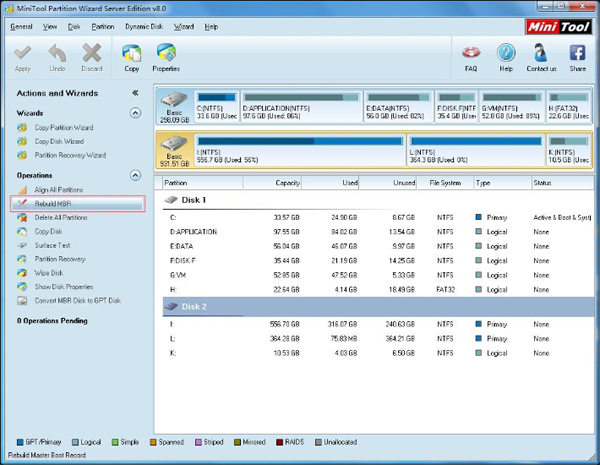
- Start MiniTool Partition Wizard, select a physical disk listed in the main window, select from top menu Disk -> Rebuild MBR
- If MBR (Master Boot Record) of disk is damaged, system cannot boot. This feature will rewrite the Master Boot Record of the selected disk without destroying the disk partition table.
- What is MBR?
- A master boot record (MBR), or partition sector, is the 512-byte boot sector that is the first sector ("LBA Sector 0") of a partitioned data storage device such as a hard disk. (The boot sector of a non-partitioned device is a Volume Boot Record. These are usually different, although it is possible to create a record that acts as both; it is called a multi boot record.) The MBR may be used to hold a disk's primary partition table. The MBR is not located in a partition; it is located at a Main Boot Record area in front of the first partition.