MiniTool Partition Wizard Server 8
- Convert NTFS to FAT.
- Copy Dynamic disk volume.
- GPT Disk and MBR Disk interconversion.
- Copy UEFI boot disk.
- Convert GPT-style Dynamic Disk to Basic.
- Move Boot/System volume for Dynamic Disk.
MiniTool Partition Wizard 8
- Partition Wizard Server Edition
- Partition Wizard Enterprise Edition
- Partition Wizard Technician Edition


Partition Manager Server Resources
Reasons to buy
- 24x7 customer support service
24 hours a day, 7 days a week. Free technical support. - Safety guarantee for online purchase 100% secure electronic Internet transactions with RegNow.
- Support Windows Server and SBS
32/64 bit Windows XP, Vista, Win7 and Windows Server
Purchase Methods
- Tel: 1-952-646-5331 (international)
- Fax: 1-604-756-1847
- Email: support@minitool.ca
- We also accept Purchase Order from our value customers. If you like to order our product by Purchase Order, please contact our sales directly for quote and invoice.
Awards & Ratings





FAQ
- 1. Create Partition is disabled, I can not Create a new partition, Why?
2. I can not resize my partitions, Why?
3. How to merge two adjacent partitions?
4. MiniTool Partition Wizard asks me to restart my computer. After computer restart, MiniTool Partition Wizard says that the disk configuration is changed, and the process can not be continued. And all the operations are not applied. Why?
a) For this problem, you should first disconnect all USB disk, then launch MiniTool Partition Wizard.
b) If your operation target is a USB disk, you need to disconnect this USB disk, then restart computer, and connect the USB disk before launch MiniTool Partition Wizard.
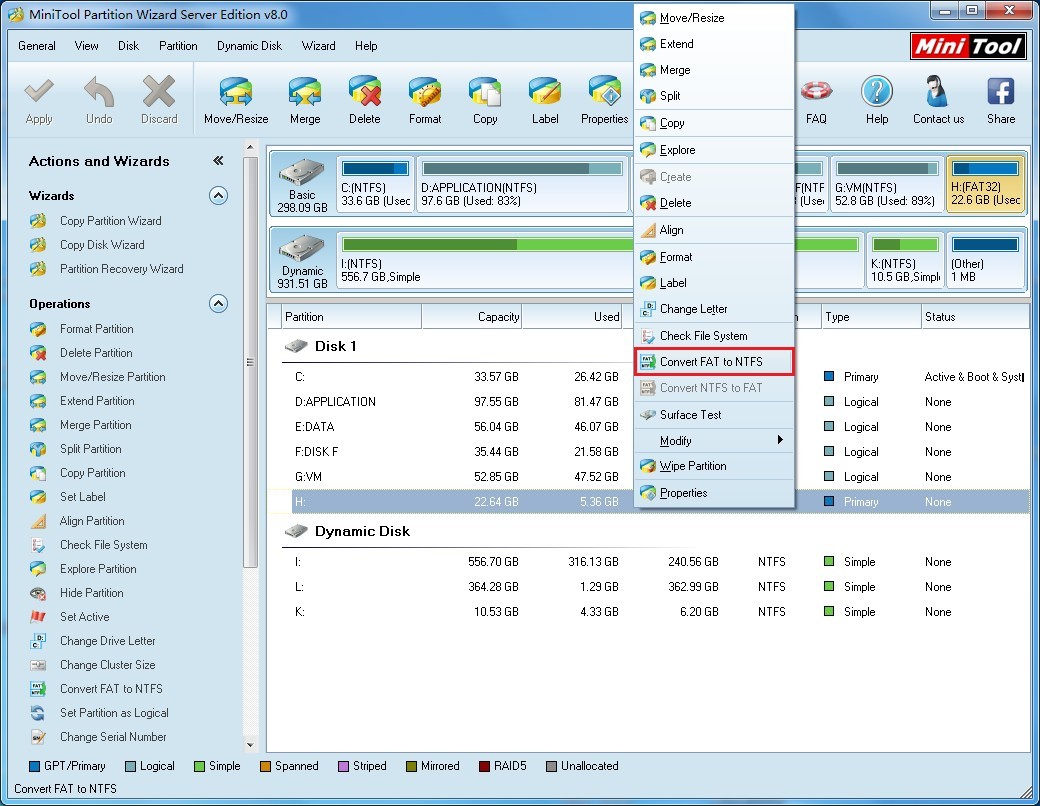
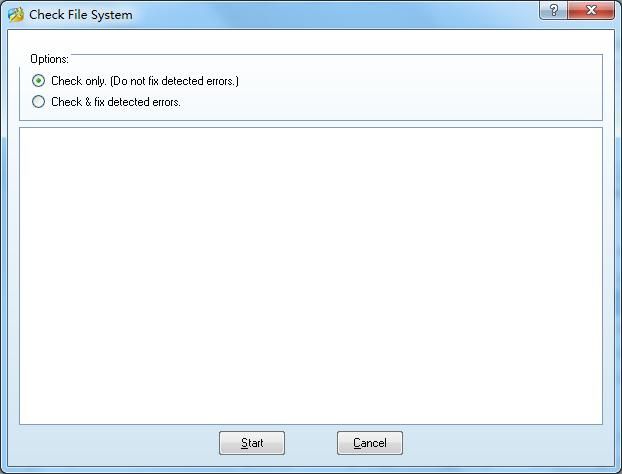
5. MiniTool Partition Wizard asks me to restart my computer. After computer restart, MiniTool Partition Wizard asks me to use "Check File System" function to fix the detected errors, and all the pending operations are not applied. Why?
This is because, MiniTool Partition Wizard finds file system error in the operated partition. To avoid data loss, we suggest you to check file system with the MiniTool Partition Wizard – Check File System to recover file system.
6. Why my burned boot CD can not boot?
Go to the following site to learn how to burn a ISO file to CD/DVD:
i. http://www.petri.co.il/how_to_write_iso_files_to_cd.htm
ii. http://pcsupport.about.com/od/toolsofthetrade/ht/burnisofile.htm
iii. http://wizardskeep.org/mainhall/tutor/neroiso.html
After you fully master the skills, you can try to burn another CD instead.






















