MiniTool Partition Wizard Server 8
- Convert NTFS to FAT.
- Copy Dynamic disk volume.
- GPT Disk and MBR Disk interconversion.
- Copy UEFI boot disk.
- Convert GPT-style Dynamic Disk to Basic.
- Move Boot/System volume for Dynamic Disk.
MiniTool Partition Wizard Help
Getting Started
Using MiniTool Partition Wizard
- MiniTool Partition Wizard Basic
- General
- Menu Of View
- Disk Operations
- Align All Partitions
- Copy Disk
- Delete All Partitions
- Rebuild MBR
- Initialize to MBR Disk
- Initialize to GPT Disk
- Partition Recovery
- Wipe Disk
- Disk Properties
- Convert Dynamic Disk to Basic Disk
- Convert MBR Disk to GPT Disk
- Convert GPT Disk to MBR Disk
- Surface Test
- Partition Operations
- Extend Partition
- Split Partition
- Align Partition
- Move/Resize Partition
- Merge Partition
- Copy Partition
- Explore Partition
- Create Partition
- Delete Partition
- Format Partition
- Label Partition
- Change Letter
- Set Active/Inactive
- Hide/Unhide Partition
- Check File System
- Convert FAT to NTFS
- Convert NTFS to FAT
- Wipe Partition
- Partition Properties
- Set Partition as Primary
- Set Partition as Logical
- Surface Test
- Change Partition Serial Number
- Change Partition Type ID
- Change Cluster Size
- Dynamic Disk
- Create Volume
- Delete Volume
- Format Volume
- Move/Resize Volume
- Wipe Volume
- Explore Volume
- Check File System
- Change Volume Label
- Change Volume Letter
- Change Volume Cluster Size
- Volume Properties
- Wizard
- Technical Support
Main Window
-
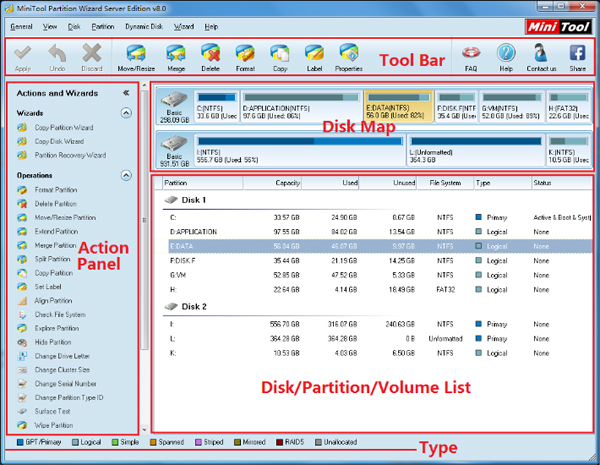
The Main interface of MiniTool Partition Wizard is comprised of five parts: 1. Tool Bar, 2. Action panel, 3. Legend bar, 4. Disk map, 5. Disk / Partition List.
1. In the Tool Bar, some of the common functions of managing partitions are listed.
2. The Action Panel divides the functions into two sections: Partition Operations and Disk Operations. It also shows the partitioning operation commands not yet carried out by user.
3. The Legend bar at the bottom of the screen displays the different kinds of legends with various colors used in MiniTool Partition Wizard.
4. The Disk Map gives an intuitive preview of the partitions or the free spaces.
5. The Disk / Partition List shows all the disks and partitions in the system as well as detailed information about them. All the following data are displayed on the Disk/Partition List.
1. Drive letter, label. If there is no drive letter in a partition, * will be showed.
2. Type of file system.
3. Total capacity of partition.
4. Used space in the partition.
5. Free space in the partition.
6. State of the partitions: Active means the partition is an active main partition, Boot means the system boots from this partition, System means that this partition is where Windows is located, and Hidden means the partition is a hidden partition.
- After selecting a partition, you can carry out any of the numerous partitioning functions through the top menu, Tool Bar, Action Panel, or through the left click and right click of the mouse.






















